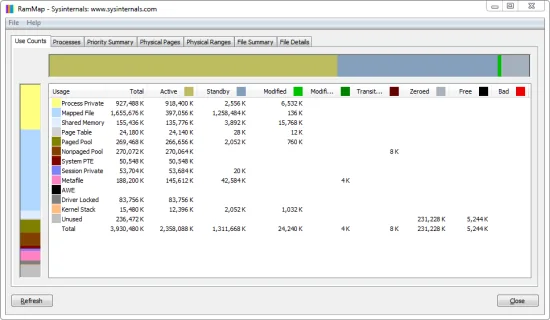
Use RAMMap64.exe -Ew to request an Empty Working Sets action or RAMMap64.exe -Et to request an Empty Standby List action, replacing the executable name when the computer uses x86 or ARM64 Windows. Run the command from an elevated shell, save a before snapshot, record the workload and refresh RAMMap afterward. A lower memory number is only a changed state; it is not proof that a leak or performance problem was fixed.
What RAMMap command line can and cannot do
The practical RAMMap command line use case is a repeatable, one-shot Empty action. A Microsoft Q&A answer documents -Ew for Empty Working Sets and -Et for Empty Standby List. Those switches change memory residency or cached-page state; they do not create a report, identify a driver allocation stack or replace the Use Counts, Processes, File Summary and snapshot views in the graphical interface. See Microsoft's command-line answer for the source of those two documented examples.
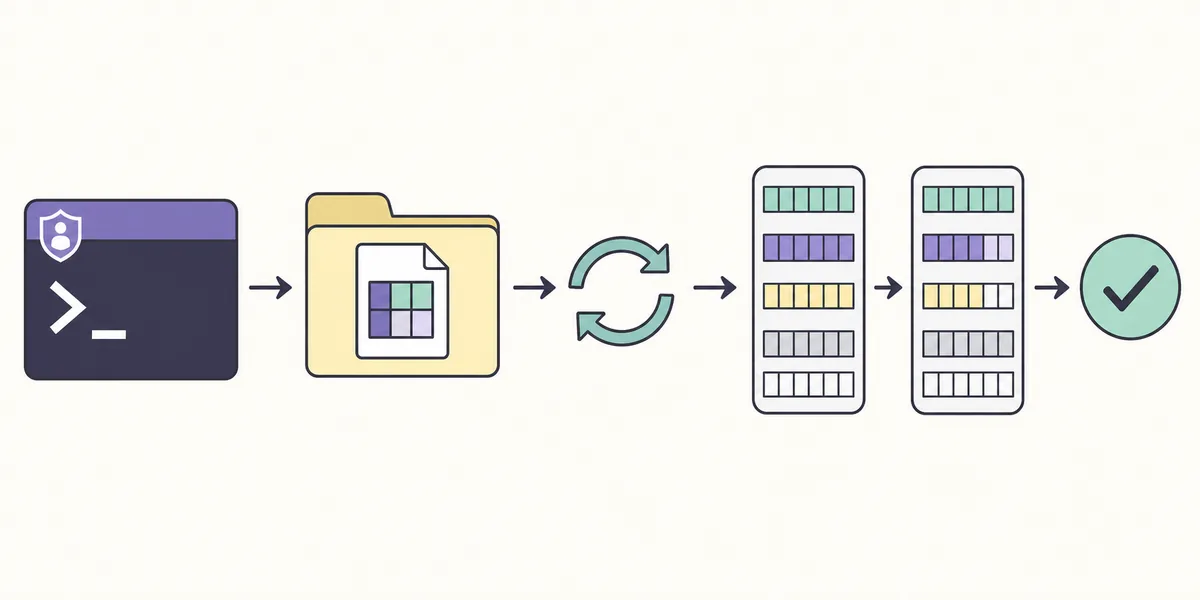
A useful test has a question before it has a switch. If the question is whether a cold cache changes application startup time, -Et can be one controlled intervention. If the question is whether a process keeps allocating memory, first capture a baseline and repeat the workload; trimming working sets with -Ew may hide the pattern instead of explaining it. The flow below is an editorial illustration, not a screenshot of a real terminal or RAMMap window.
Verified RAMMap command line options
Keep the command surface deliberately small. The two examples below are the switches documented in the Microsoft Q&A answer used for this page. Treat the option as a state-changing test, not as a routine RAM cleaner. The executable name in the examples assumes a typical x64 Intel or AMD Windows system; use the architecture table in the installation section when that assumption is wrong.
Do not copy an undocumented flag from a random script and call it an official RAMMap command line option. If a later RAMMap release changes its command-line behavior, check the current Microsoft source and test the exact build you installed before updating an automation job.
| Command | Action | Good fit | Boundary |
|---|---|---|---|
| RAMMap64.exe -Ew | Request Empty Working Sets | A lab test that measures resident working-set trimming | It does not release an application's underlying allocation or prove a leak is fixed. |
| RAMMap64.exe -Et | Request Empty Standby List | A warm-cache versus cold-cache comparison | It discards reclaimable cache and can increase later storage reads and page faults. |
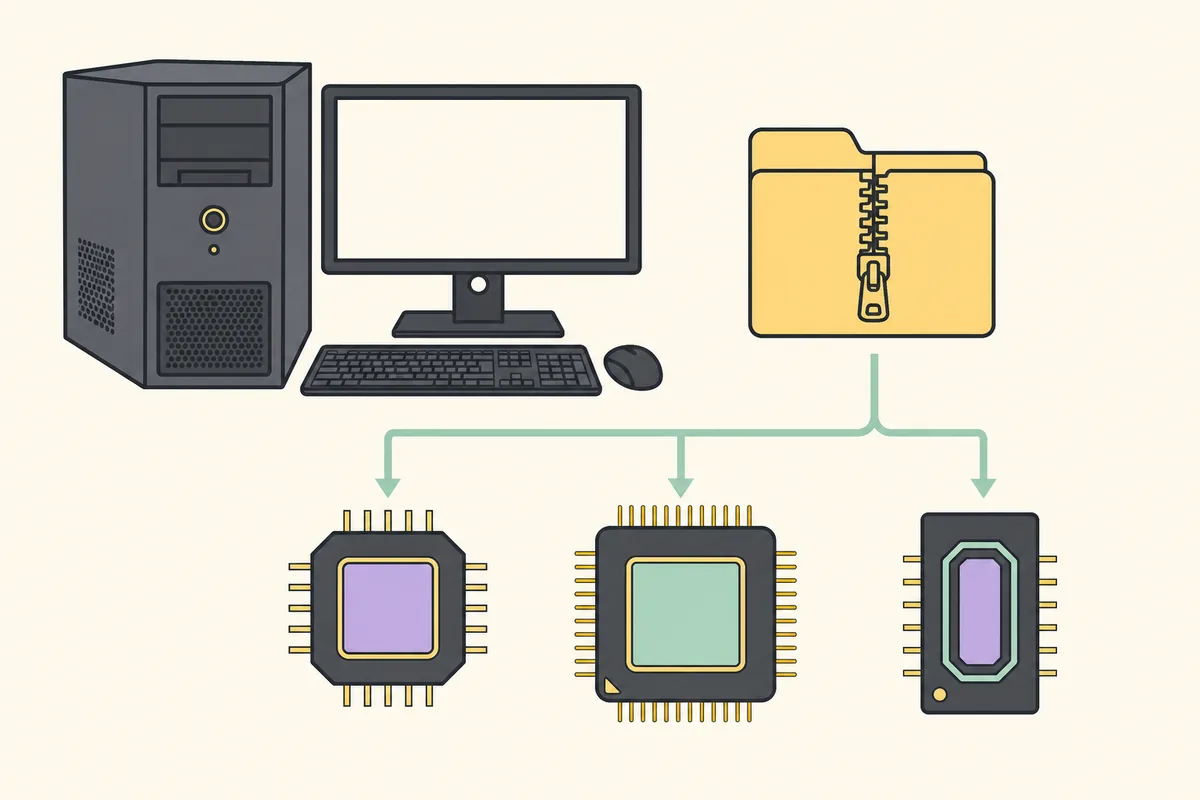
| RAMMap.exe / RAMMap64a.exe | Architecture-specific executable names | Use x86 or Windows on ARM when System type requires it | The name identifies the processor architecture, not a different feature tier. |
Prepare the executable and an elevated test
The current RAMMap release record checked for this page is v1.63. Microsoft Learn, the official Sysinternals ZIP and the local WinGet package record all identify the March 26, 2026 release. The verified ZIP returned HTTP 200 with 737,190 bytes and SHA256 6536A8107A3FB391E4443F2742366067341A7DA50DE89F99CA0B2390120DD0CC on August 1, 2026. The page's RAMMap version guide explains how to repeat that freshness check instead of trusting a stale filename.
Extract the official archive into a stable folder and keep the executable, Eula.txt and any log file together. Open Windows Terminal or PowerShell as administrator, because the same elevation requirement that applies to the GUI also matters when a command-line action touches system-wide memory state. Start with a saved RAMMap snapshot if the test needs evidence that can be reviewed later.
- Verify the source
Use the current Microsoft Learn page or the official Sysinternals ZIP. Compare version, release date, byte size and SHA256 when the exact file matters.
- Choose the build
Most Intel and AMD Windows 10 or 11 PCs use RAMMap64.exe. Windows on ARM uses RAMMap64a.exe; 32-bit Windows uses RAMMap.exe.
- Open an elevated shell
Start PowerShell or Windows Terminal with administrator rights and confirm the working directory contains the selected executable.
- Record the baseline
Refresh Use Counts, save a snapshot if needed and write down the workload, elapsed time and columns that will be compared.
Build a repeatable PowerShell batch test
A batch test should make one change and leave a small evidence trail. The pattern below assumes that the script sits beside RAMMap64.exe and uses -Et for a cold-cache experiment. Change the executable name for x86 or ARM64 Windows, and do not schedule the script as routine maintenance. Run it only after recording a normal warm-cache baseline.
The final log line records that the process returned, but an exit code is not a diagnosis. After the command finishes, reopen or refresh RAMMap, save the after snapshot and repeat the same workload. Compare elapsed time, I/O, responsiveness and the same memory categories rather than celebrating a temporary fall in Standby or Working Set numbers.
$rammap = Join-Path $PSScriptRoot 'RAMMap64.exe'
$stamp = Get-Date -Format 'yyyyMMdd-HHmmss'
if (-not (Test-Path -LiteralPath $rammap)) { throw 'RAMMap64.exe not found' }
& $rammap -Et
('Finished {0} exit={1}' -f $stamp, $LASTEXITCODE) | Add-Content -LiteralPath (Join-Path $PSScriptRoot 'rammap-command.log')
Verify what changed after the command
Refresh the graphical RAMMap view after the process exits. For -Et, confirm that the intended standby-list state changed, then run the same workload with the same input and timing. For -Ew, compare the selected process or system working-set values before and after the trim, then check whether the pages return when the application continues. The immediate result is a measurement point, not a repair certificate.
If the original symptom returns, classify the category before choosing another tool. High Process Private growth belongs in a process or application investigation; high Mapped File belongs in File Summary and File Details; growing Paged or Nonpaged Pool needs driver-oriented evidence. Use the RAMMap memory leak workflow when the goal is a repeatable growth test, not a one-click number reduction.
| Record | Before action | After action |
|---|---|---|
| Environment | Windows build, RAMMap version, executable architecture | Same machine and same executable |
| Workload | Application, input, warm or idle state, elapsed time | Same workload and timing method |
| RAMMap state | Use Counts and selected tab values, optional snapshot path | Refresh, same columns and optional after snapshot |
| User impact | Paging, disk activity, latency or responsiveness | Measure whether the symptom improved and whether it returns |
Why scheduled RAMMap clearing is a bad default
Windows uses standby pages and working sets as part of normal memory management. Emptying them can make a dashboard number look smaller while forcing applications to read the same data again. That extra I/O may make the next launch slower, and it does not release a driver allocation or an application's committed memory. Read the RAMMap clear cache guide before turning either switch into a shortcut or scheduled task.
Do not use -Et to hide a suspected leak before collecting evidence. Do not use -Ew to claim that a process is healthy because its resident working set briefly fell. The safer pattern is baseline, one controlled action, refresh, compare, then move to the tool that can identify the owner.
- Do not run Empty commands continuously on a production workstation.
- Do not clear memory before saving the snapshot or recording the symptom.
- Do not mix a cache test with a process-leak test; they answer different questions.
- Do not call a lower RAM total a performance improvement without measuring the workload.

Know when to stay in the GUI or switch tools
The command line is a narrow control surface. Use the official RAMMap interface when you need Use Counts, Processes, Priority Summary, Physical Pages, File Summary, refresh or saved snapshots. The how to use RAMMap guide starts with a question and routes you to the tab that can answer it, which is safer than repeatedly emptying a list.
If the category points to a driver, RAMMap is only the first classification step. PoolMon, Windows Performance Recorder, Performance Monitor or a vendor diagnostic may be needed to identify allocation tags and call paths. If RAMMap itself will not launch, use the RAMMap not opening checklist rather than adding more flags to a command that has not been verified.
RAMMap command line FAQ
Does RAMMap have command line options?
Yes. The documented examples used here are -Ew for Empty Working Sets and -Et for Empty Standby List. Check the current Microsoft source and test the installed build before relying on any additional switch.
What does RAMMap -Et do?
It requests an Empty Standby List action. The command can remove reclaimable cached pages for a controlled cold-cache test, but it is not a routine optimization or a fix for a memory leak.
What does RAMMap -Ew do?
It requests an Empty Working Sets action. A lower resident working set does not mean the process released its underlying allocations; measure whether the pages return under the same workload.
Can I schedule RAMMap command line cleanup?
Routine scheduled clearing is not recommended. It can add disk reads, hide the evidence needed for diagnosis and make application performance less consistent. Keep command-line actions inside a documented test.
Which RAMMap executable should a command use?
Use RAMMap64.exe on typical x64 Intel or AMD Windows systems, RAMMap64a.exe on Windows on ARM and RAMMap.exe only on 32-bit Windows. The current release archive contains all three architecture builds.
Download RAMMap v1.63 before testing
Use the Microsoft Sysinternals ZIP verified on August 1, 2026, then keep the executable and your test log together.