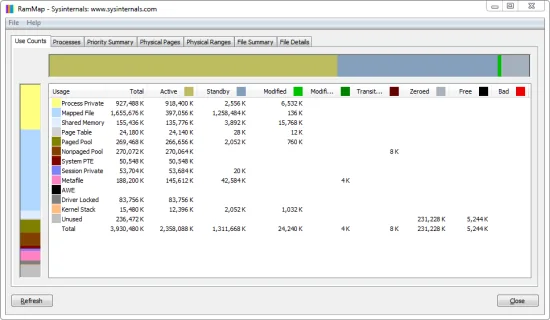
Close duplicate RAMMap processes, confirm that the current Microsoft ZIP was fully extracted, use RAMMap64.exe on normal x64 Windows or RAMMap64a.exe on Windows on ARM, and run it as administrator. Open Use Counts first. If the error appears only when refreshing Physical Pages, File Details or another heavy view, save the exact tab, RAMMap version, Windows build, memory size and reproduction steps rather than repeatedly clearing cache or downloading an unofficial build.
What “error refreshing database” usually means
RAMMap continually refreshes information about physical pages, processes, files and page-list states. A message that appears during refresh says that the selected view could not complete its current enumeration; it does not identify the cause by itself. A very large physical-memory map, a damaged extraction, an architecture mismatch, an endpoint-control rule, a slow remote session or a problem limited to one saved view can all produce a similar symptom.
The first useful distinction is whether RAMMap itself starts. If the main window opens and Use Counts can populate, the utility is not failing at the same checkpoint as a program that immediately exits. If only one tab fails, keep that boundary. Do not turn a detailed-view error into a claim that Windows has a memory leak or that the RAM is physically defective.
The current Microsoft documentation describes RAMMap as a physical-memory analysis utility with refreshable views and saved snapshots. That makes a controlled comparison more useful than a one-click “clean memory” attempt. The goal is to learn which view, workload and environment variable causes the refresh failure.
Confirm the exact failure before changing anything
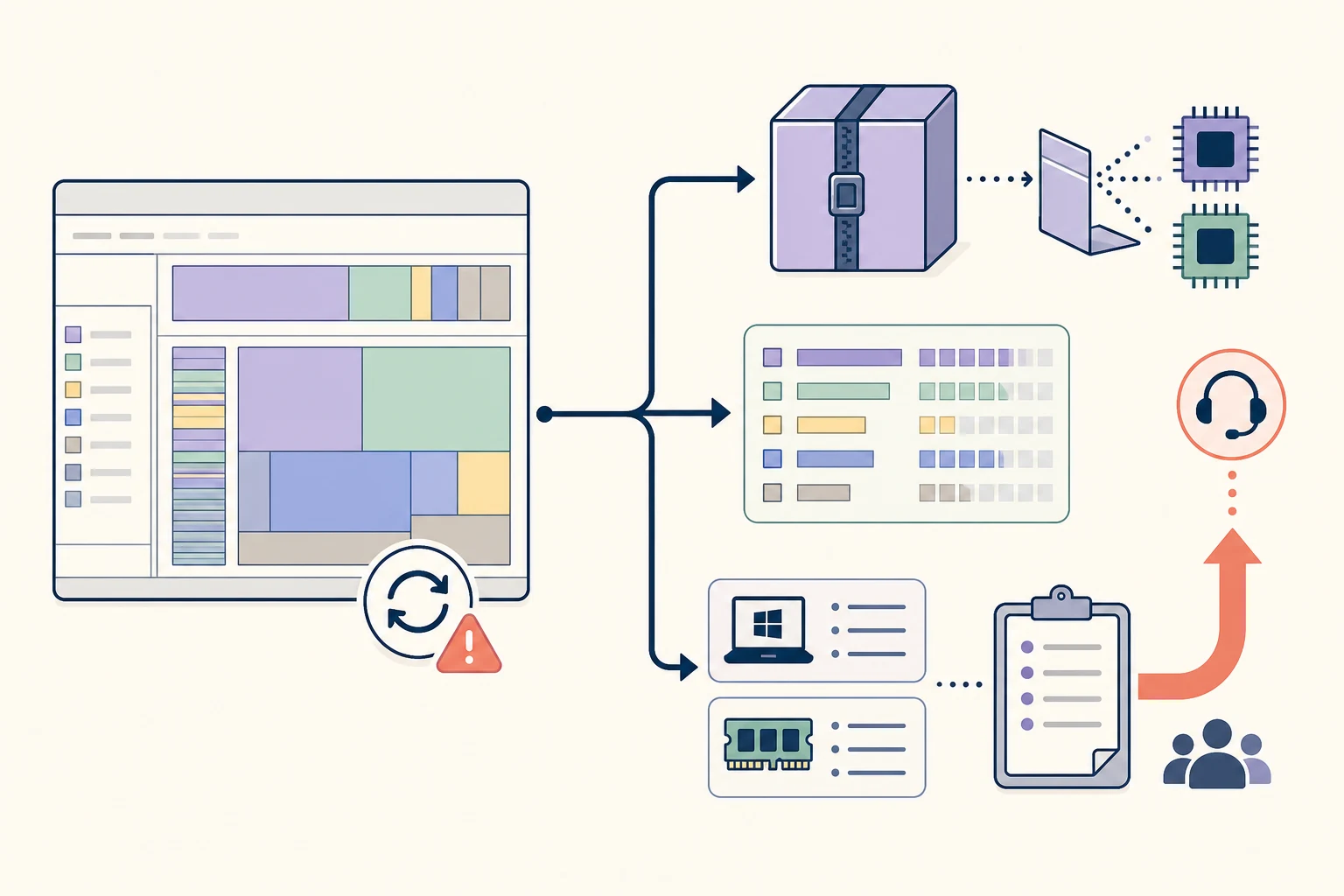
Write down the exact wording, the time, the selected tab and what happened immediately before the error. Note whether the message appears at launch, after pressing Refresh, while opening a saved snapshot, or only after switching to Physical Pages, File Summary or File Details. “RAMMap not responding” and “error refreshing database” can be related, but they are not interchangeable evidence.
Use one clean test. Close extra RAMMap windows, pause a large copy or update, keep the same monitor session and avoid changing the workload while you compare views. Record whether Use Counts, Processes and one detailed view behave differently. This quick matrix prevents a temporary delay from being treated as a broken installation.
If the error disappears after waiting, record the delay rather than calling the test a fix. Machines with a large amount of RAM can take longer to enumerate detailed physical-page data. If it returns at the same tab and after the same action, you now have a reproducible boundary worth investigating.
| Observed behavior | Most useful interpretation | Next check |
|---|---|---|
| The window never appears | Launch, policy, archive or architecture issue | Use the RAMMap not-opening guide and verify the executable |
| Use Counts works; one detailed tab fails | View-specific enumeration or saved-data issue | Stay on Use Counts, retry the tab once and record the exact view |
| Refresh fails after opening a large snapshot | Snapshot or workload-specific state may be involved | Start without the snapshot and test a new baseline |
| Every view fails after extraction | Damaged copy, permissions or environment problem | Recheck the official archive, signature and local folder |
| Only a remote or managed session fails | Display, policy or resource boundary may be involved | Repeat locally or ask the administrator for an approved test |
Verify the official ZIP and the correct executable
Download the current archive from Microsoft Sysinternals rather than a mirror that adds an installer or repacks the files. On August 7, 2026, this site verified RAMMap v1.63, the March 26, 2026 release, and a direct ZIP response of 737,190 bytes. A future release can change those facts, so check the official source again before relying on an old hash or caption.
Extract the entire ZIP to a normal local folder such as C:\Tools\RAMMap. Running a portable utility from the compressed-folder viewer, a network share or a protected temporary path adds variables to the refresh test. Check Properties > Digital Signatures and confirm the publisher shown by Windows before approving elevation.
Choose the file that matches Windows System type. RAMMap64.exe is the normal choice for Intel or AMD x64 Windows, RAMMap64a.exe is for Windows on ARM, and RAMMap.exe is for 32-bit Windows. The ARM64 build is not a newer feature edition. A wrong executable can fail at launch or create misleading troubleshooting noise.
- Download from the first-party source
Use the official Microsoft Sysinternals page or its verified ZIP endpoint; do not use a wrapper or an unsigned mirror.
- Extract all files
Keep RAMMap.exe, RAMMap64.exe, RAMMap64a.exe and the license file together in a local folder.
- Check architecture
Open Settings > System > About > System type and choose x64, ARM64 or x86 accordingly.
- Check signature and elevation
Verify the Microsoft signature, then run the matching executable as administrator for the full system view.
Retry with the lightest RAMMap view first
Start RAMMap once, approve the expected elevation prompt and wait for Use Counts to populate. Do not immediately open Physical Pages or File Details just because the summary looks incomplete. The summary view gives you a smaller, more stable baseline and tells you whether the basic memory query works.
If Use Counts works, refresh it once after the system is quiet. Then open Processes or File Summary only when the large category tells you which direction to investigate. Save a snapshot after the baseline. If a specific detailed tab triggers the database error, return to the last working view and keep the failure scoped to that tab.
Avoid running several RAMMap copies at once. Repeated launches can compete for the same data, create multiple windows and make Event Viewer timestamps harder to interpret. A single verified executable, one controlled refresh and one saved baseline produce better evidence than a sequence of cache-clearing commands.
- Close duplicate processes
Check Task Manager and keep only the intended RAMMap process before retrying.
- Open Use Counts
Let the compact category view finish before opening page-level or file-level detail.
- Refresh once in a quiet state
Pause downloads, updates and virtual-machine startup so the comparison has fewer moving parts.
- Save a working snapshot
Use a timestamped filename so a later failure can be compared with a known-good baseline.
When a detailed view triggers the database error
Physical Pages, File Details and other deep views can expose far more records than the compact summary. On a workstation with substantial RAM, the time and memory needed to enumerate, sort or repaint that data can be much higher. A refresh error that occurs only there does not prove that the Use Counts categories are wrong.
Test the same view after a clean restart, but change one variable at a time. Start with a new snapshot instead of loading the file that failed. Use a local folder, one monitor if possible and the same RAMMap build. If the view works after those controls, document the variable rather than claiming that a generic Windows memory cleaner fixed the issue.
When the question is which process, file or pool is large, you may not need the most detailed page. Use Counts can route you to Processes, File Summary or a pool investigation. The RAMMap memory types guide explains that Process Private, Mapped File, Standby and Nonpaged Pool require different follow-up paths.
Check Windows 11 and the surrounding environment
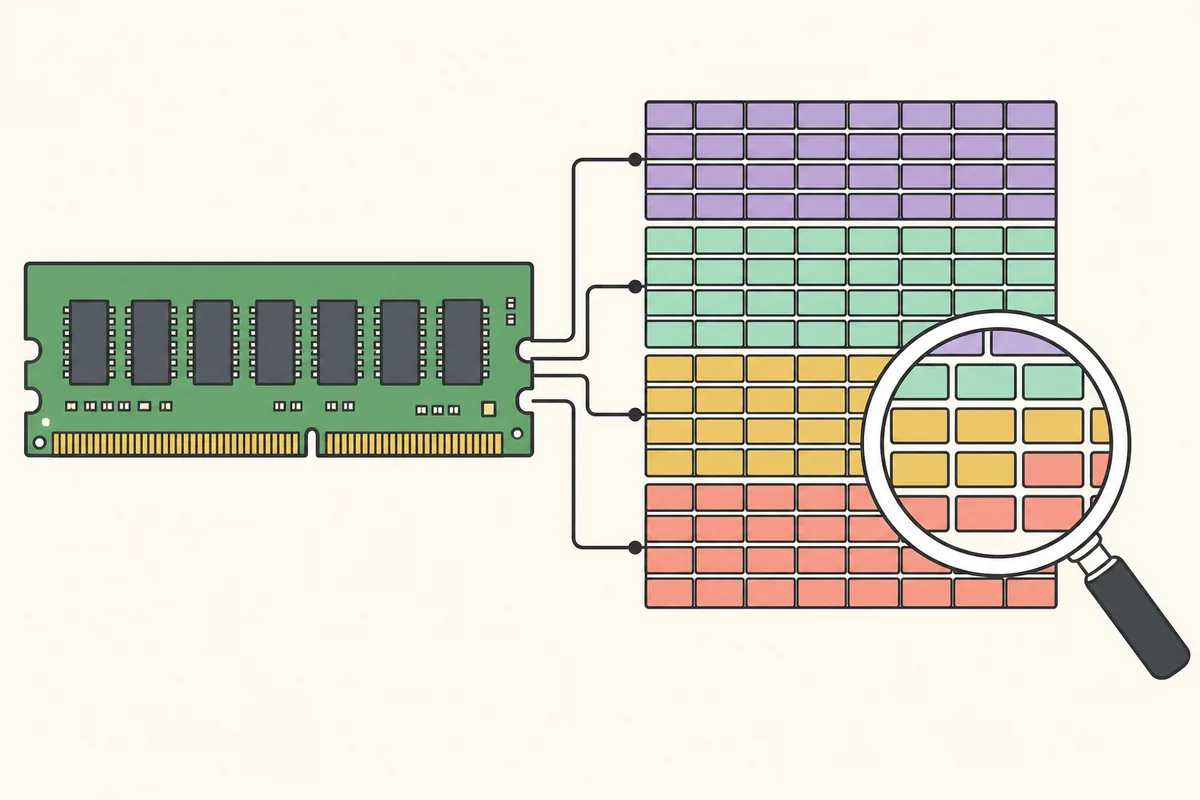
Record the Windows edition, version and build, installed RAM, whether the test is local or remote, and whether endpoint security or application control is active. AppLocker, Windows Defender Application Control, virtualization boundaries and managed-device policy can affect portable administrative utilities. Do not disable protection simply to make a refresh complete.
If the failure happens after a system update, compare the same RAMMap build on the same machine and note the update date. If it happens only in Remote Desktop or after a monitor change, test locally before blaming the memory database. A window that is slow or outside the visible display is a different problem from a refresh error inside a working view.
Do not use Empty Standby List, Empty Working Sets or an unrelated cache command as a first response. Those operations change memory state and can remove the evidence you need. The RAMMap clear-cache guide describes when an Empty action is appropriate for a controlled experiment, not as a repair for database enumeration.
If a verified copy fails in every view on one managed computer but works in an approved test environment, treat the policy or environment as part of the diagnosis. Give the administrator the exact executable, source, version, error text and time instead of trying to bypass the control.
Never turn off Defender, SmartScreen or organizational application-control rules just to complete a RAMMap refresh. Verify the source and use an approved diagnostic path.
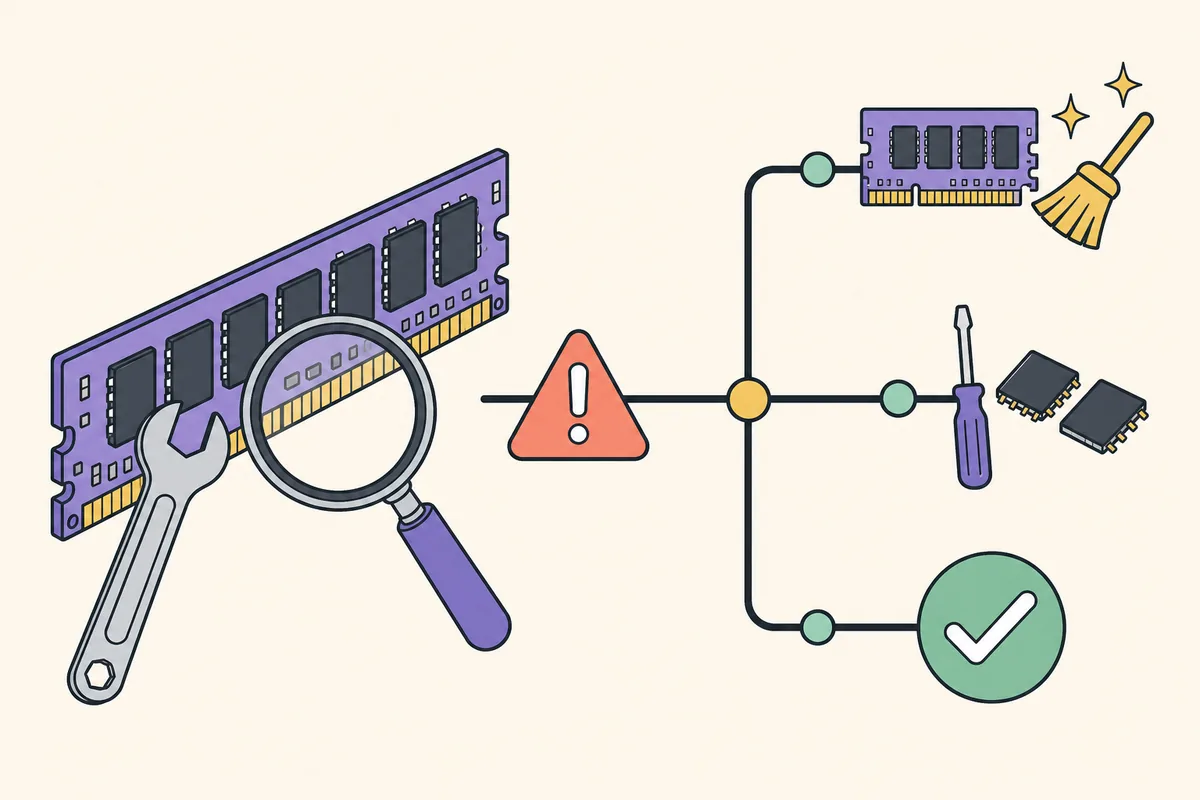
Capture reproducible evidence before escalating
A useful report contains the exact error text, RAMMap version, executable name, Windows build, installed RAM, selected tab, whether the test was local or remote, and the last successful action. Add the time, the snapshot filename, the number of RAMMap processes and whether Use Counts still works. This turns “RAMMap failed” into a test another person can repeat.
If the process exits or Windows reports a fault, check Event Viewer > Windows Logs > Application around the same time. Record the faulting module and exception code without copying unrelated personal paths or document names. On a managed device, also record any application-control event ID and send it through the approved support route.
A checksum helps identify the exact archive, but it does not prove that the error is a memory leak or that a third-party mirror is safe. Keep the official URL, signature result and file hash together. If the official release changes, recheck the version and file size before comparing old reports with new ones.
- Exact message and timestamp
- RAMMap version and executable architecture
- Windows edition, version, build and installed RAM
- Working and failing tabs or snapshots
- Official source, digital signature and SHA256
- Event Viewer or application-control evidence when present
Get-ComputerInfo | Select-Object WindowsProductName, WindowsVersion, OsBuildNumber
Get-FileHash .\RAMMap.zip -Algorithm SHA256
When to stop retrying and escalate
Stop changing variables when the same verified build fails at the same view after a clean extraction, local test and administrator approval. Repeated refreshes, repeated cache clearing and repeated downloads can destroy the timeline without improving the diagnosis. Preserve the working Use Counts snapshot and the first failing detailed-view record.
If you need a general launch or freeze checklist, continue to RAMMap not opening. If the actual question is a large Process Private value, a high Mapped File category or a growing memory leak, use the matching guide instead of treating the refresh error as the root cause. A database refresh problem can be a symptom of the view or environment you selected.
For a production server or business-critical workstation, follow the application's support process before collecting dumps or restarting services. Memory reports and snapshots can contain paths, process names and document metadata. Share only the minimum evidence required by the approved administrator or vendor channel.
The strongest conclusion is often narrow: “Use Counts works, File Details fails after loading this snapshot on Windows build X.” That is more actionable than saying that RAMMap or Windows memory is broken.
Check the current official RAMMap source
This guide was checked against the Microsoft Sysinternals RAMMap page on August 7, 2026. The current verified release used by this site is v1.63, published March 26, 2026. The direct official ZIP returned 737,190 bytes when checked on that date; a later release may change the size or hash.
Use the official Microsoft RAMMap documentation for the current release, feature description and source link. The download button below points to the verified Microsoft Sysinternals ZIP and does not redirect to a mirror.
RAMMap Refresh Database Error FAQ
Is “error refreshing database” a memory leak?
No. It is a refresh or enumeration failure message. A memory leak requires a repeatable growth pattern in a process or category over time; this error alone does not identify one.
Is RAMMap not responding the same as a database refresh error?
They can overlap, but they describe different observations. Not responding is a responsiveness symptom; the database message identifies a failed refresh operation. Record the tab and timing before combining them.
Will Empty Standby List fix the refresh error?
Not normally. Empty Standby List changes reclaimable cache and can remove diagnostic evidence. First verify the archive, executable, permissions and failing view.
Should I use RAMMap64 or RAMMap64a on Windows 11?
Use RAMMap64.exe on ordinary x64 Intel or AMD Windows. Use RAMMap64a.exe on Windows on ARM. Check System type instead of guessing from the computer brand.
Is RAMMap v1.63 safe to download?
Use the official Microsoft Sysinternals source, verify the digital signature and compare the archive details when required. Do not treat a third-party mirror as official.
Can a command-line switch repair the database refresh?
A command-line action is not a general repair. Keep Empty commands inside a controlled experiment and solve the source, view, architecture or environment issue first.
Download RAMMap v1.63 from Microsoft
Use the official Sysinternals ZIP, verify the matching executable and reproduce the refresh error from a clean local folder.