
For routine Windows use, choose none. Use Empty Standby List only for a documented cold-cache test, record the before-and-after state, and remember that clearing memory does not repair a leak, driver allocation or capacity problem.
Check memory pressure before clearing cache
Windows intentionally uses otherwise idle RAM for cache. A large standby or mapped-file number can make future reads faster and is normally reclaimable when applications need memory. Task Manager showing little completely free memory is not enough evidence of a problem.
Open Use Counts and compare Active, Standby, Modified, Free and Zeroed totals. Look for sustained memory pressure, paging, poor responsiveness or a reproducible workload failure. Then identify whether the large value is a page-list state such as Standby or a use category such as Process Private, Mapped File or Nonpaged Pool. These are not interchangeable.
- Save open work and stop time-sensitive tasks.
- Refresh RAMMap and save a before snapshot.
- Write down the exact symptom and workload.
- Change only one list during the test.
- Measure whether the symptom improves and whether it returns.
What each RAMMap Empty option does
Command names can vary slightly across releases, but the important distinction is the target. A working-set trim asks processes or the system to release resident pages. A standby-list action discards cached pages waiting for possible reuse. A modified-page action interacts with dirty pages that may require writing. None of these actions adds RAM or fixes the source of repeated allocation. For a practical RAMMap clear cache test, change one list, measure the same workload and read how to use RAMMap before changing another state.
| Command | What changes | When it can help a test | Likely side effect |
|---|---|---|---|
| Empty Working Sets | Trims resident pages from process working sets | Testing how an application behaves after its resident pages are removed | Applications fault pages back in and may pause or slow |
| Empty System Working Set | Trims parts of the system working set | A narrow support or kernel-cache experiment | System components may perform more I/O afterward |
| Empty Standby List | Discards reclaimable standby cache | Reproducing a cold-file-read test or confirming standby interaction | Previously cached files must be read again |
| Empty Priority 0 Standby List | Targets lowest-priority standby pages | A less broad standby experiment when priority zero is relevant | Still removes useful cached content |
| Empty Modified Page List | Forces handling of modified pages | Specialized diagnostics involving modified-page buildup | Can trigger storage writes and is not a general cleanup step |
How to run a RAMMap clear cache test
If the test specifically requires cold cache, record a baseline first. Open RAMMap as administrator, save a snapshot, select Empty Standby List once and wait for the command to finish. Refresh Use Counts and confirm that the intended list changed. Then run the exact workload and measure time, I/O and responsiveness.
Do not interpret the immediate increase in free or zeroed pages as a lasting performance gain. If the workload needs the same files, Windows will cache them again. Repeatedly emptying standby memory can produce a cycle of extra storage reads and misleadingly low cache numbers.
A useful RAMMap clear cache test compares two defined runs: one with the normal warm cache and one after a documented standby-list clear. Keep the application version, input data, storage device and timing method constant. Repeat the RAMMap clear cache test only after returning the machine to a comparable state. The result can show the value of cached reads, but it should not be presented as proof that clearing improves everyday performance.
- Save a before snapshot
Use File > Save and record the workload state.
- Select one command
Choose Empty Standby List only when standby cache is the subject of the test.
- Refresh and confirm
Verify that the intended page-list total changed; do not clear other lists to make the graph look cleaner.
- Repeat the workload
Measure whether the original symptom changes and whether cache naturally returns.
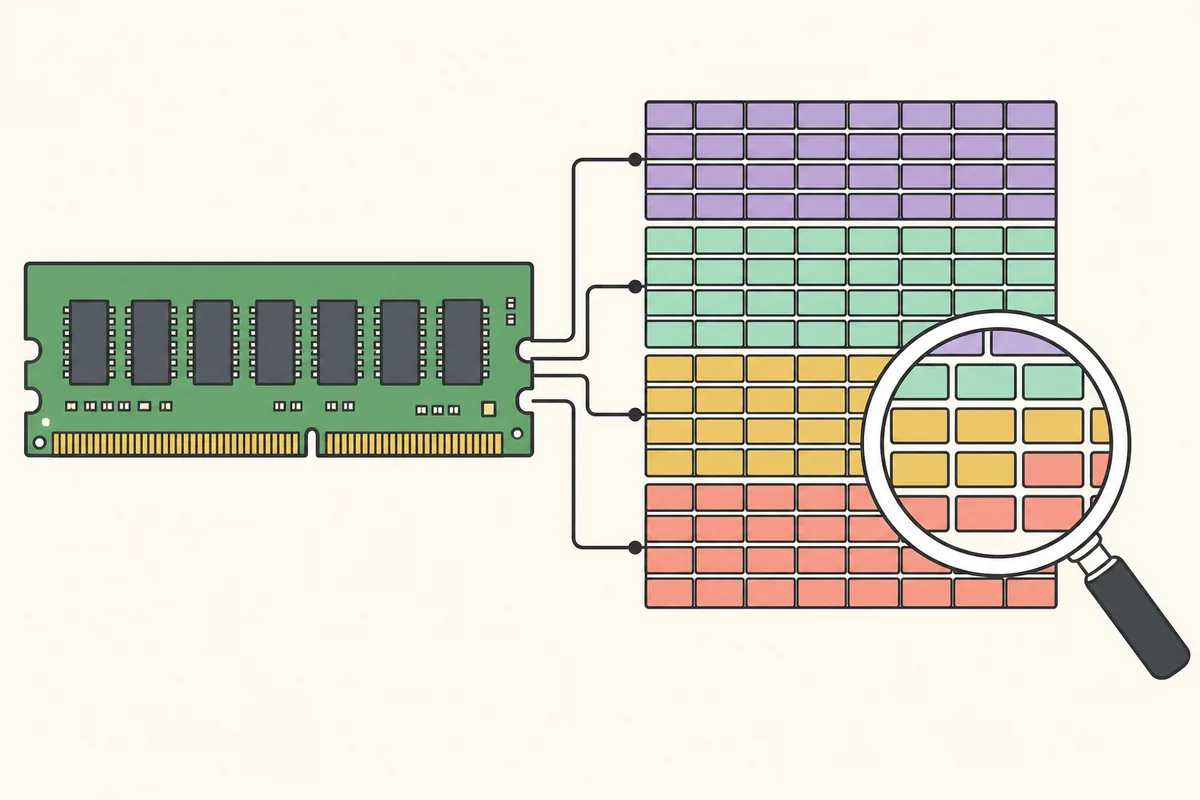
Why Empty Working Sets can make programs slower
A process working set is the subset of its virtual pages currently resident in physical memory. Trimming it can reduce the resident number quickly, but the underlying allocation or commit may remain. When the process touches those pages again, Windows must resolve faults and bring needed data back into the working set.
Use this command only when the experiment is about working-set residency. It is not a repair for a process that continues allocating memory. If one application's private usage grows under a repeatable action, identify the process and investigate its commit, allocations or workload instead of repeatedly trimming every process.
A smaller working set after trimming does not prove that a memory leak was fixed. It only proves that resident pages were removed at that moment.
Do not automate the RAMMap clear cache workflow
Scheduled standby-list clearing and real-time memory cleaners fight Windows' cache policy. They can hide the time pattern needed for diagnosis, increase storage activity and make benchmarks inconsistent. A system that genuinely runs out of memory needs the allocating process, driver, workload or capacity problem addressed.
For repeatable lab testing, document the command, Windows build, RAMMap version, machine memory and timing. For everyday use, let Windows manage standby cache. Read how to use RAMMap to trace the cause before changing state.
Cases where a RAMMap clear cache test is the wrong fix
Do not clear lists to address nonpaged-pool growth, a driver-locked allocation, application commit exhaustion or an actual hardware shortage. Standby clearing cannot fix those causes. It may temporarily change the headline number while the important category remains.
Do not clear memory immediately before collecting evidence of a recurring issue. Save a snapshot, capture relevant performance counters and identify the responsible category first. If RAMMap shows a high mapped-file total, use File Summary to identify the file. If Process Private is high, use Processes. If a kernel pool grows, move to pool and driver diagnostics.
RAMMap clear cache FAQ
Which RAMMap Empty option should I use?
Usually none. For a defined cold-cache experiment, Empty Standby List is the usual RAMMap clear cache command; save a snapshot first and do not treat it as routine optimization.
Is it safe to empty the standby list?
It normally does not delete files, but it discards useful cached pages and can increase storage reads or cause temporary slowdowns. Save work and use it only for a controlled test.
Does Empty Working Sets free leaked memory?
It trims resident pages but does not necessarily remove the allocation or committed memory behind a leak. The process may fault pages back in immediately.
How often should I clear RAMMap cache?
There is no recommended schedule. Windows normally manages cache automatically, and scheduled clearing can reduce performance.
Why does standby memory return after I clear it?
Windows caches data again as programs and the operating system read files. Returning standby memory is expected and is not proof that RAMMap failed.
Download RAMMap from Microsoft
Use the current signed v1.63 build for your diagnostic snapshot.