
The safest way to clear RAM cache in Windows 11 is usually to do nothing: Windows reclaims standby and file-cache pages when demand rises. Restart only when you need a clean session. Use RAMMap's Empty Standby List for a documented warm-cache versus cold-cache test, not as a scheduled performance fix. If Process Private, Nonpaged Pool or commit keeps growing, investigate that cause instead of repeatedly clearing cache.
What cached RAM means in Windows 11
Windows uses otherwise idle physical memory to keep recently used file data and pages close to the processor. That cache can make the next launch or file read faster, and it is normally available for reuse when an application asks for more memory. A large Standby or Mapped File value is therefore not automatically a leak or a shortage.
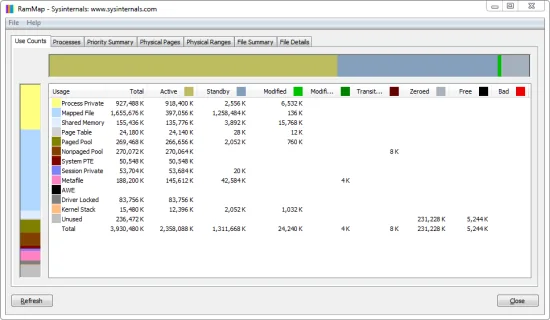
Before you search for how to clear RAM cache Windows 11, open Task Manager and look at Memory in use, Available memory, committed memory, paging and the behavior of the workload. In RAMMap, Use Counts separates Active, Standby, Modified, Free, Process Private, Mapped File and Nonpaged Pool. The category matters more than the headline percentage.
The official Microsoft RAMMap documentation describes the views used to identify physical-page categories. That classification is the reason a blind cache cleaner is a poor first step: it changes a number without explaining why the number was high.
| What you see | What it can mean | First action |
|---|---|---|
| Large Standby or Mapped File | Reusable file cache or a workload that reads many files | Repeat the workload and check Available memory |
| High Process Private that keeps growing | Application commit or a possible leak | Identify the process and compare snapshots |
| High Nonpaged Pool or Driver Locked | Kernel or driver allocation | Investigate the driver path; do not empty cache |
| Low Available memory with paging | Real pressure, not just a large cache | Close the cause, reduce workload or add capacity |
The safest ways to reset or reduce visible cache
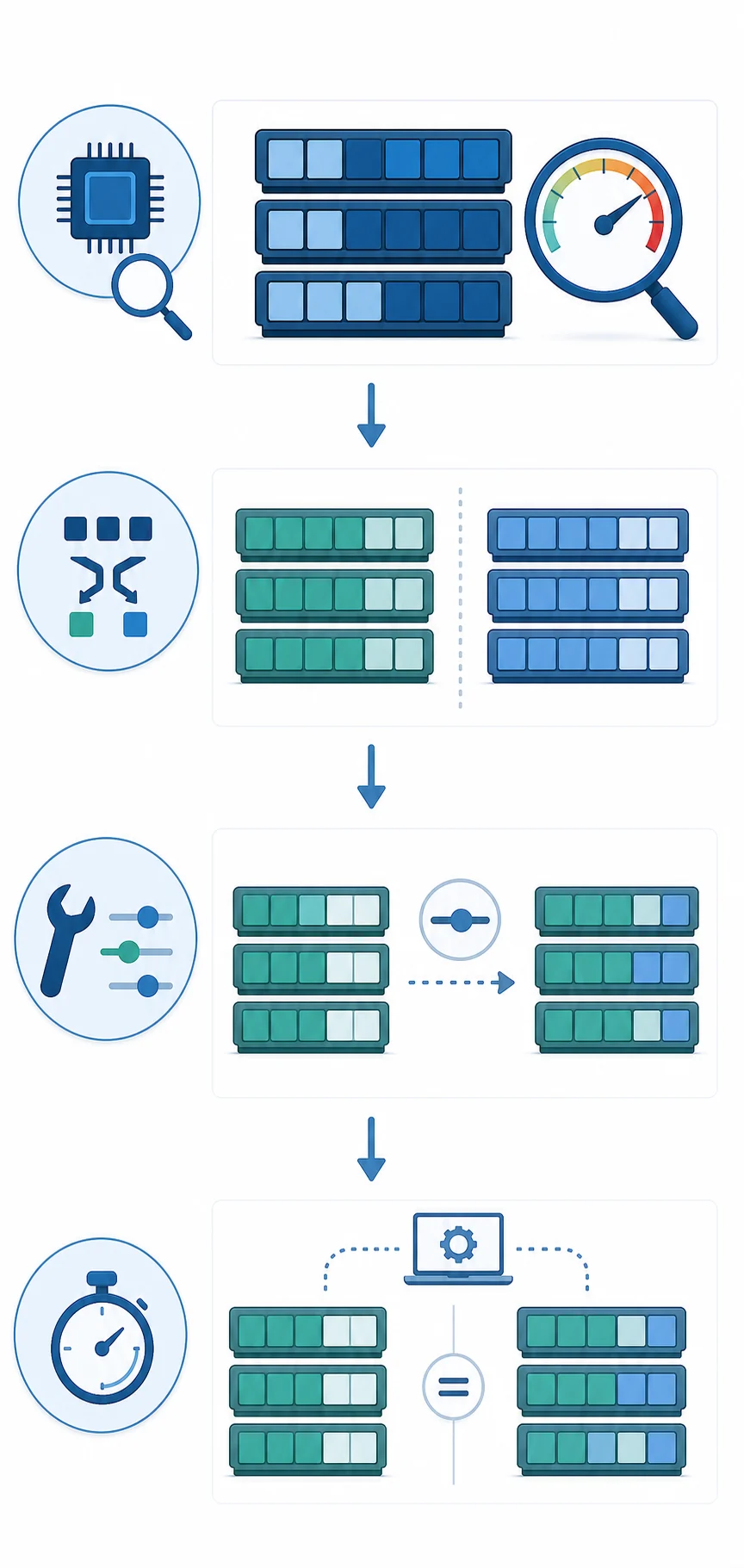
There is no universal Windows 11 button that permanently makes cached RAM disappear, because the operating system is designed to reuse available memory. Choose the least invasive action that answers your question. If an application is frozen or the machine has been running for days, restart after saving work. If the issue is one program, close or repair that program before changing system-wide memory state.
Do not confuse a smaller cache counter with better performance. Clearing useful pages can make the next launch slower because Windows must read the same data from storage again. A controlled test can be valid; a timer or memory-cleaner schedule usually produces noise and hides the original symptom.
- 1. Check the symptom
Record the application, workload, Available memory, paging and the time the problem appears. Save open work before changing memory state.
- 2. Try the normal reset
Close the responsible application or restart Windows when you need a clean session. This is safer than repeatedly trimming every working set.
- 3. Classify the memory
Use Task Manager for a quick overview, then use RAMMap Use Counts or Processes when you need to distinguish cache from private or kernel memory.
- 4. Change one thing
Only empty a page list when the test requires it. Refresh, repeat the same workload and record whether the original symptom actually changed.
Free RAM is not a score to maximize. Windows may refill cached memory immediately because that is part of normal performance management.
How to use RAMMap for a controlled cache test
RAMMap is useful when the question is not simply “how do I clear RAM?” but “which memory category changes, and what does that do to this repeatable workload?” Download the current Microsoft-signed archive, extract it to a normal folder and run the executable that matches the processor. The verified RAMMap release checked for this guide is v1.63, published March 26, 2026; the official ZIP measured 737,190 bytes and matched SHA256 6536A8107A3FB391E4443F2742366067341A7DA50DE89F99CA0B2390120DD0CC on August 16, 2026.
Start with Use Counts and save a snapshot before touching the Empty menu. If the question concerns cached file data, Empty Standby List can create a cold-cache comparison. It does not add RAM, repair a leak or prove that a smaller number is healthier. The dedicated RAMMap clear cache guide explains every Empty command and its side effects.
For a broader Windows 11 explanation, compare the same application launch or file operation once with the normal warm cache and once after the defined test. Keep the Windows build, RAMMap version, application, input files and measurement method unchanged. If the result is not repeatable, stop clearing and investigate the workload instead.
| Option | Best for | Boundary |
|---|---|---|
| Restart Windows | A clean session or a stuck application | Does not explain which allocation caused the pressure |
| Task Manager | Quick process, commit and Available-memory check | Does not expose every physical-page category |
| RAMMap Use Counts | Separating Standby, Mapped File, Process Private and pools | Detailed evidence still needs a repeatable workload |
| RAMMap Empty Standby List | One documented warm-cache versus cold-cache test | Discards useful cache and can increase storage reads |
Why scheduled RAM cleaners and blind commands are risky
Third-party RAM-cleaner tools and scheduled standby-list commands often promise a lower memory number. They generally discard cache without removing the process, driver or workload that rebuilt it. The result can be extra disk reads, slower launches and less evidence when you later need to diagnose the real problem.
If you use a command-line test, document the exact executable, version, architecture, Windows build and before-and-after measurements. Do not download an unsigned utility from a mirror just because a search result calls it an “official RAM cleaner.” The Empty Standby List Windows 11 comparison explains the provenance boundary around EmptyStandbyList.exe.
A command can be appropriate in a lab or support procedure when the purpose and rollback are clear. It is not a substitute for identifying Process Private growth, a Nonpaged Pool issue, compressed memory behavior or a genuine capacity limit.
- Do not schedule Empty Standby List every few minutes.
- Do not combine working-set, standby and modified-page actions in one test.
- Do not claim that a lower RAM counter proves a performance improvement.
- Keep official download, version and checksum evidence for any administrator-level utility.
RAMMap is a Microsoft Sysinternals diagnostic utility. This site links to Microsoft's official ZIP and does not host or repackage the program.
When clearing cache is the wrong fix
If Process Private grows every time one application performs the same action, clearing Standby memory will not remove that allocation. Identify the process, compare snapshots and use the Process Private RAMMap guide for the next diagnostic branch. A memory leak needs a workload or software investigation, not a cleaner schedule.
If Nonpaged Pool, Driver Locked or another kernel category grows, focus on drivers and system components. If compressed memory is prominent, read the Windows memory compression guide before changing policy. If Mapped File grows during normal file access while Available memory remains healthy, Windows may simply be using idle RAM as cache.
Treat repeated paging, application crashes, severe responsiveness loss or consistently low Available memory as pressure signals. Reduce the workload, close the responsible process, check storage and drivers, or plan a capacity change. A one-time cache clear can be evidence in a test, but it is not a general repair.
- Process Private growth: investigate the owning application.
- Nonpaged Pool or Driver Locked growth: investigate drivers and kernel components.
- Mapped File or Standby growth with healthy Available memory: verify whether the workload is simply caching files.
- Low Available memory plus paging: address the pressure instead of only changing cache counters.
A repeatable Windows 11 warm-cache versus cold-cache test
Use a controlled comparison when you need to know whether cached data affects a launch, file read, benchmark or support case. The goal is not to make the RAM chart look empty. The goal is to compare the same workload with one known memory-state change and record the result honestly.
Keep snapshots, timing notes and version facts together. If a newer RAMMap release becomes available, recheck the official Microsoft page and update the recorded version, file size, checksum and CTA before comparing old and new evidence.
- Record the baseline
Write down Windows edition and build, physical RAM, application version, input files, Available memory, paging and the relevant RAMMap category.
- Run the warm-cache task
Measure the same launch or file operation without clearing anything. Save a RAMMap snapshot if the result must be reviewed later.
- Make one change
Choose Empty Standby List once only when the test requires a cold cache. Do not change multiple lists at the same time.
- Repeat the task
Use the identical application, files, storage path and timing method. Expect the cold-cache run to perform more reads in some workloads.
- Interpret the result
If the symptom returns or the cache refills, record that as evidence. Move to process, driver or capacity analysis when the category—not the cache—is the problem.
For everyday Windows 11 use, let the memory manager manage cache. Clear it only when a defined test or support procedure gives the action a clear purpose.
How to clear RAM cache Windows 11 FAQ
What is the safest way to clear RAM cache in Windows 11?
Usually do nothing and let Windows reclaim cached pages when demand rises. Restart when you need a clean session. Use RAMMap Empty Standby List only for a defined, measured cold-cache test.
Does Windows 11 have a clear RAM cache button?
There is no universal permanent-clear button because Windows uses available RAM as cache by design. Task Manager, a restart and RAMMap answer different diagnostic questions.
Can I use RAMMap to clear cached memory?
Yes, RAMMap can empty specific lists, including the standby list, but that discards useful cache and does not fix a leak or add capacity. Save a baseline and compare one repeatable workload.
Should I use a RAM cleaner every few minutes?
No. Scheduled clearing can increase disk activity, slow launches and hide the process or driver that caused memory growth. It is not a general Windows performance fix.
How do I know whether cached RAM is the problem?
Check Available memory, paging, responsiveness and the category that grows. High Standby or Mapped File with healthy Available memory can be normal; growing Process Private or Nonpaged Pool needs a different investigation.
Is EmptyStandbyList.exe the same as RAMMap?
No. RAMMap is a Microsoft Sysinternals diagnostic utility with memory views and snapshots. EmptyStandbyList.exe is a separate utility whose current first-party provenance should be verified before use; this site does not mirror an unverified copy.
Use RAMMap for a measured cache test
Download the current Microsoft Sysinternals v1.63 ZIP when you need Use Counts, snapshots or one controlled Empty Standby List comparison.