Use Physical Pages when a category-level total is not enough and you need to trace individual physical pages to a process, file, use type or page-list state. Refresh once after recording the workload, filter the table to the relevant columns, and save a snapshot before making any Empty-menu change. A large row count alone is not a leak: interpret ownership, state and change over time together.
What the RAMMap Physical Pages tab is for
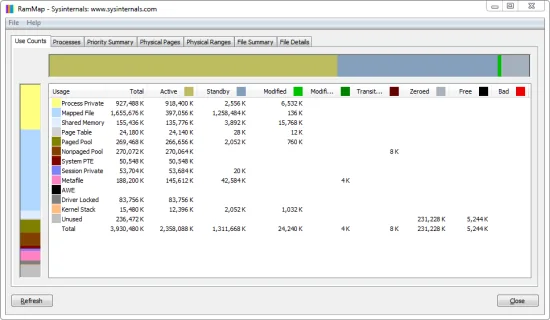
Use Counts answers how much physical memory belongs to Process Private, Mapped File, Standby, Modified, pools and other categories. Physical Pages answers the narrower question: which individual pages make up that total, and what does each row say about its owner or state? That detail helps when the next step depends on a file, process or page-list state.
Treat the tab as evidence collection, not a permanent dashboard. A refresh can be expensive on a machine with a lot of RAM, and the table alone cannot prove a leak or bad driver. It gives you a point-in-time sample before a later comparison or a handoff to another diagnostic tool.
| Question | Start here | Why Physical Pages may follow |
|---|---|---|
| Which category is large? | Use Counts | Trace the category to concrete rows only after the total is recorded. |
| Which process owns resident pages? | Processes | Inspect individual rows when a shared or mixed total needs context. |
| Which files populate mapped memory? | File Summary | Use Physical Pages to sample file-backed rows and page-list state. |
| Did a workload change memory? | Save two snapshots | Use the detailed table to explain a meaningful difference. |
Prepare a useful Physical Pages refresh
Start with one question, such as which file-backed pages appear after an import or whether a process still owns resident pages after its window closes. Record the Windows build, RAMMap version, architecture, workload, time and symptom so the result can be repeated.
Check Task Manager's Available memory and paging indicators, then refresh Use Counts. Save a baseline snapshot before opening the detailed table. If the machine is under pressure, save work and do not stack several Empty commands on a slow refresh.
- Define the event
Choose the application action, file operation or idle interval that should create the change. Keep it repeatable.
- Capture the baseline
Refresh Use Counts, note the time and save a snapshot before you open a large Physical Pages table.
- Refresh once
Open Physical Pages and allow the map to finish. Do not click refresh repeatedly while the first refresh is still working.
- Filter before interpreting
Narrow the rows to a use, process, file or page-list state that answers the question. Export or capture only the evidence you can explain.
How to read individual physical-page rows
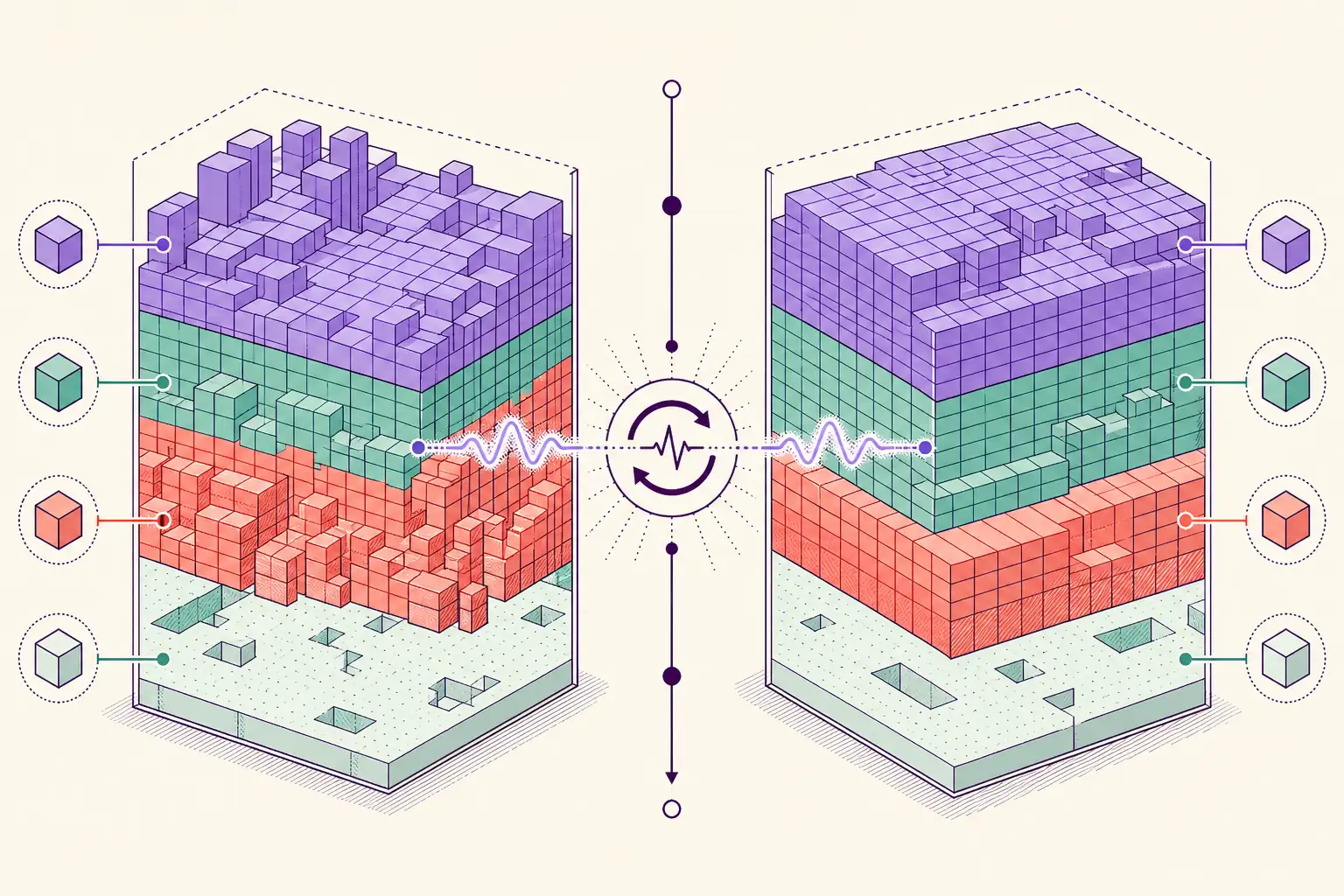
Read a row as a combination of fields. The owner or use field says whether it is tied to a process, mapped file or system category; the page-list state says whether it is Active, Standby, Modified, Free or another state. A Standby file-backed page has a different meaning from an Active Process Private page.
Sort to find a pattern, then sample enough rows to support it. A few rows can explain a mapped-file spike but cannot prove that every page belongs to one file. Compare the sample with the category total and workload timeline, then save the view when another person must review it.
| Field or clue | What it can tell you | What it cannot prove alone |
|---|---|---|
| Use / owner | Whether the page is tied to a process, file or system category. | That the owner is defective or leaking. |
| Page-list state | Whether the page is active, cached, modified or currently free. | That a cached page is unavailable to Windows. |
| File or path | Which file-backed data appears in the sample. | That the file is the cause of system-wide pressure. |
| Timestamp and workload | When the row was captured and what action preceded it. | That two captures are comparable when the workload changed. |
Filter and sample the table without losing context
A full page map can contain more rows than a person can inspect. Sort one stable column and narrow one dimension at a time: owner, file, use type or page-list state. For a process question, compare the sample with the Processes tab; for a file question, check File Summary first.
Keep column headings, tab name, refresh time, architecture and the relevant total in screenshots. A cropped table without headings can hide whether the rows came from Physical Pages, File Details or a loaded snapshot.
- Use one filter question per pass: owner, file, use type or page-list state.
- Record whether the rows are from a live refresh or a loaded snapshot.
- Keep the same sort and filter order for the baseline and reproduction capture.
- Do not treat a larger row count as more severe without the total bytes and state.
- Save the unfiltered snapshot before narrowing the view for a report.
A repeatable Physical Pages troubleshooting workflow
Use three captures: baseline, reproduction and recovery or idle. Perform the same action, refresh at each point and note whether the category total, owner and state moved together. This keeps a cold-cache test from looking like a fix.
If rows change while Available memory is healthy, record an observation. If Process Private grows on every repeat and remains after the workload ends, move to the process-private or leak workflow. Kernel-category growth needs a kernel-focused handoff, not more cache clearing.
- Baseline
Record Use Counts, save a snapshot and capture the Physical Pages filter state before the workload.
- Reproduce
Perform one controlled action, such as opening the same project or importing the same file set.
- Compare
Refresh once, compare category totals and inspect a representative group of rows.
- Recover
Close the workload or wait for idle, then capture again to see what remains and what is reclaimable.
Do not combine Empty Working Sets, Empty Standby List and Modified Page List in the same experiment. One change at a time makes the Physical Pages evidence interpretable.
What common patterns mean
Many file-backed Standby rows often describe reusable cache. Windows can reclaim them when demand rises, so cached rows are not the same as a shortage. Active Mapped File rows still need the file path, access pattern and time series before you call them a problem.
Process Private that rises after the same action needs a different follow-up. Compare Processes, commit behavior and the recovery capture. A total that falls when the app closes may be normal; one that keeps rising while idle deserves deeper investigation.
- High Standby plus healthy Available memory: usually a cache observation; verify with a controlled workload.
- Active Mapped File tied to a repeatable file operation: inspect File Summary and the file path before changing cache.
- Process Private that survives closure or repeats upward: compare process data and investigate the application.
- Nonpaged Pool or Driver Locked growth: preserve captures and move to kernel or driver-focused tools.
- Large or slow refreshes: reduce the question to a category or snapshot instead of repeatedly rebuilding the map.
Refresh cost, snapshots and safe limits
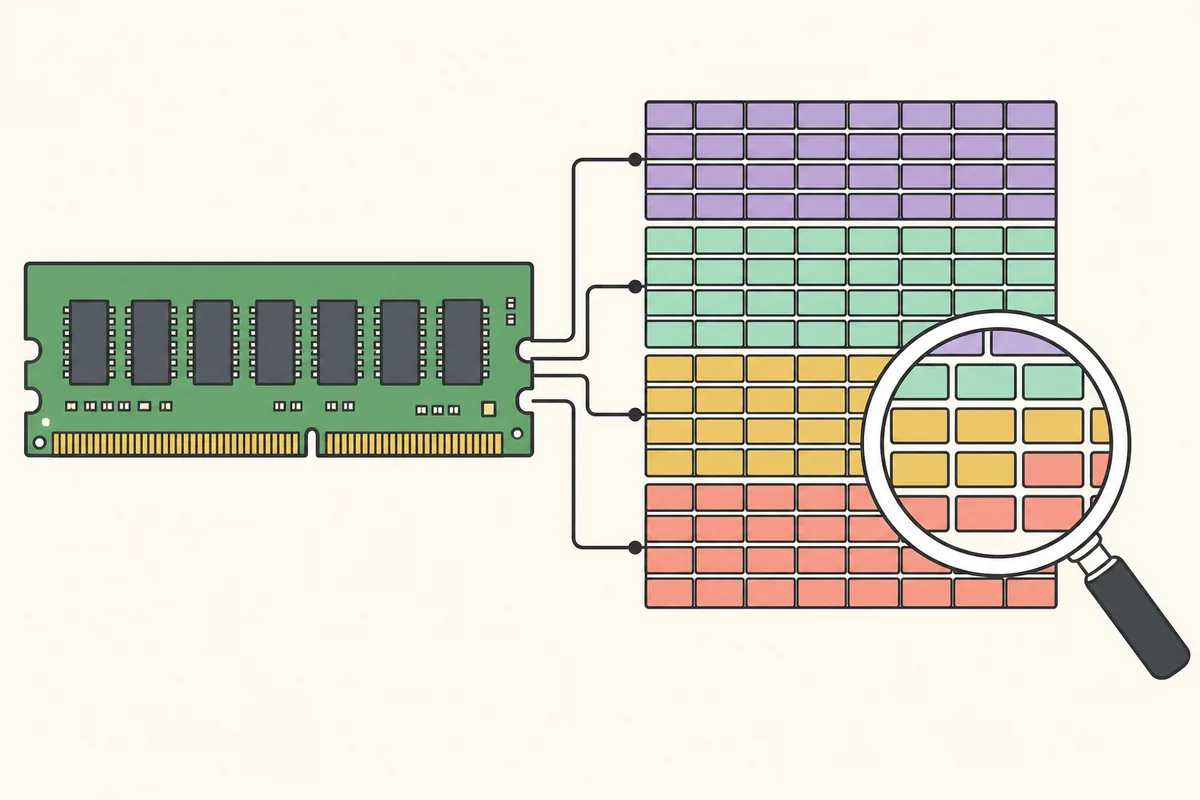
Physical Pages represents a detailed map, so a refresh can take longer on systems with a lot of RAM. Plan the capture window, avoid a tight refresh loop and use a saved snapshot when you only need to review an earlier state.
Name snapshots with the machine, workload, stage and time. Keep the original baseline after creating a filtered report, and say whether a screenshot came from a live refresh or a loaded snapshot.
2026-10-23-PC01-project-import-baseline.rmpEmpty-menu actions can discard useful cache or trim working sets temporarily. Use them only when the experiment needs a known state, and compare the same workload before and after.
When to use another Windows memory tool
RAMMap is strong at physical-page categories and point-in-time evidence, but it is not every Windows diagnostic. Use Task Manager for a pressure check, Process Explorer for process properties, Performance Monitor for trends, PoolMon for pool tags and WPR/WPA for traces.
Share the question, before/after snapshots, category totals, a small explained sample, Windows build and the next tool. A short evidence package is more useful than a screenshot with no time or workload.
| Observed clue | Useful next tool | Reason |
|---|---|---|
| Quick available-memory pressure | Task Manager | Confirm the user-visible pressure and commit context. |
| Process ownership or handles | Process Explorer | Inspect process details beyond physical-page rows. |
| A trend over hours | Performance Monitor | Collect counters without repeatedly refreshing a page map. |
| Kernel pool growth | PoolMon / WPR | Move from page evidence to pool tags or a trace. |
RAMMap Physical Pages FAQ
What does RAMMap Physical Pages show?
It shows individual physical-memory rows with context such as use, owner, file or page-list state. It is more detailed than Use Counts and needs a timestamp and workload.
Why does Physical Pages take a long time to refresh?
A detailed page map requires more work than a summary view, especially with a lot of RAM. Refresh once, wait for completion and use snapshots for review.
Can Physical Pages prove a memory leak?
No. It can show a repeatable pattern, but a leak diagnosis also needs recovery captures and application or performance tracing.
Are Standby rows a problem?
Usually not alone. Standby pages are cached and reclaimable. Check Available memory, responsiveness and reuse before clearing anything.
Should I empty a list before reading Physical Pages?
No. Capture the normal baseline first. Empty actions change the state and can hide the behavior you are testing.
What belongs in a Physical Pages screenshot?
Include the tab, headings, time, filters, RAMMap version and workload. Add the related category total so the sample has context.
Get RAMMap before collecting page evidence
Microsoft lists RAMMap v1.63, released March 26, 2026. Open the official Sysinternals page, verify its release details and download the ZIP before starting.