
Yes. RAMMap is a portable Sysinternals utility that can run on supported Windows 11 installations. Download the current Microsoft-hosted v1.63 ZIP, extract it completely, use RAMMap64.exe on normal Intel or AMD x64 systems or RAMMap64a.exe on Windows on ARM, and begin with Use Counts before changing any memory state. A large Standby or Mapped File value is not automatically a leak; compare categories, timestamps and workload steps first.
Does RAMMap work on Windows 11?
RAMMap is designed to show how physical memory is being used and which page lists or categories are large at a point in time. On Windows 11, that makes it useful for questions such as whether a growing value is Process Private, Mapped File, Standby, a kernel category or an ordinary cache that Windows can reclaim. It is an observer first, not a permanent performance booster.
The official Microsoft RAMMap page lists the current v1.63 release and the portable ZIP. Windows 11 edition, installed RAM and processor architecture still matter, so record those details before comparing two snapshots. If the tool does not open, use the RAMMap launch troubleshooting guide rather than downloading an unverified mirror.
| Question | Practical answer | Why it matters |
|---|---|---|
| Supported Windows 11 PC? | Start with the official v1.63 ZIP | The source and version are part of the evidence |
| Intel or AMD 64-bit? | Run RAMMap64.exe | This is the normal x64 Windows 11 case |
| Windows on ARM? | Run RAMMap64a.exe | Use the ARM64 build, not the x64 executable |
| Large Standby value? | Compare workload and reclaimable cache | A large cache is not automatically a leak |
| Need long-term trends? | Pair RAMMap with counters or tracing | RAMMap is a detailed checkpoint, not a time-series monitor |
Download RAMMap for Windows 11 from Microsoft
The verified release checked on August 22, 2026 is RAMMap v1.63, published March 26, 2026. The stable Microsoft ZIP measured 737,190 bytes, opened as a valid archive and contained RAMMap.exe, RAMMap64.exe, RAMMap64a.exe and Eula.txt. The stable file is named RAMMap.zip, so the file name alone does not tell you which release you received.
Use the verified Microsoft Sysinternals ZIP or start from the official release page. The checked SHA256 is 6536a8107a3fb391e4443f2742366067341a7da50de89f99ca0b2390120dd0cc. Keep the archive intact until you have confirmed the version and extracted the complete set of files.
This page uses the v1.63 package checked on August 22, 2026. If Microsoft publishes a newer release, recheck the official page, ZIP size, checksum, executable names and every version-specific CTA before updating the guide.
Choose RAMMap64.exe or RAMMap64a.exe
Most Windows 11 computers with Intel or AMD processors use the x64 executable, RAMMap64.exe. Windows on ARM uses RAMMap64a.exe. The smaller RAMMap.exe file is the 32-bit build and is not the normal choice for a current 64-bit Windows 11 installation. Do not mix executables from different ZIP releases: keep one verified archive together so the version, signature and notes describe the same package.
If you are not sure which build matches the device, check Settings, System and About for the system type, or confirm the architecture through your organization’s normal inventory method. The RAMMap installation guide covers extraction, Microsoft signature checks and WinGet package identity; this page keeps the focus on Windows 11 compatibility and interpretation.
| File | Use it when | Avoid this mistake |
|---|---|---|
| RAMMap64.exe | Intel or AMD x64 Windows 11 | Do not choose it just because the file name looks familiar |
| RAMMap64a.exe | Windows on ARM64 | Do not replace it with the x64 build |
| RAMMap.exe | A verified 32-bit Windows environment | Do not treat it as the default modern build |
| Eula.txt | Keeping the package complete | Do not discard package context before verification |
First run on Windows 11: extract, elevate and observe
RAMMap is portable, so there is no traditional setup wizard to repair or uninstall. Extract the complete ZIP to a normal folder, keep the files from one release together and launch the architecture-matched executable. Windows 11 may show SmartScreen or an administrator consent prompt; verify the source and signature rather than disabling security controls just to make the window appear.
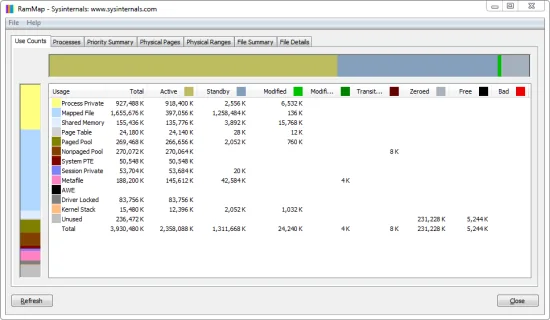
The first view should be a quiet observation. Record the Windows 11 build, installed memory, architecture, workload and time, then open Use Counts. If a value is unexpectedly high, note its Active, Standby, Modified or other state before using any Empty command. A change made before the baseline can erase the evidence you were trying to understand.
- Record the baseline
Write down the Windows 11 edition or build, installed memory, processor architecture, current workload and the symptom you are testing.
- Verify one package
Use the Microsoft-hosted v1.63 ZIP, keep the complete archive and compare the checksum when the investigation needs stronger provenance.
- Extract to a normal folder
Do not run the executable from inside the ZIP. Keep the extracted files together and avoid mixing releases.
- Approve elevation when needed
Use the normal Windows 11 administrator prompt when system-wide physical-memory visibility requires it; do not lower security policy as a shortcut.
- Capture before changing state
Start with Use Counts, then choose Processes, Physical Pages, Priority Summary or File Summary based on the category that changed.

How to read RAMMap on Windows 11
Use Counts gives the quickest high-level map. Processes helps connect private or shared physical pages to an owner. Physical Pages is useful when the question is about page-list states, while File Summary and File Details help trace a large mapped-file category to files and workload. Read the row and the state columns together; a single Total number rarely explains why memory is being used.
A practical comparison has two or more checkpoints taken at the same point in a repeatable workload. If Process Private grows after the same operation, follow the process and its own counters. If Mapped File or Standby grows, separate active file-backed use from reclaimable cache. For a deeper explanation of labels, use the RAMMap memory types reference instead of treating every colored row as an error.
| Observation | Next view | Interpretation boundary |
|---|---|---|
| Process Private keeps growing | Processes | Confirm repeatable process growth before calling it a leak |
| Mapped File is large | File Summary and File Details | Separate active mappings from reusable file cache |
| Standby is large | Use Counts and priority context | Standby can be reclaimed when another workload needs RAM |
| Kernel category is high | Use Counts plus performance tools | Move to driver or pool diagnostics for ownership |
| The issue lasts for hours | Counters and tracing | RAMMap snapshots do not replace a time-series record |
Safe Windows 11 tests: cache, standby list and working sets
A large cached value is often a sign that Windows is using available RAM for file data, not that the computer has lost memory. The Windows 11 RAM cache guide explains the difference between a safe reset and a misleading cleanup routine. Use RAMMap to compare a warm workload with a cold-cache checkpoint only when you have a clear question and a way to measure the result.
Do not schedule Empty Standby List or Empty Working Sets as a generic Windows 11 optimization. An Empty action changes the state, can make the next read slower and may hide the category that needs investigation. If your question is specifically about standby memory, read the Windows 11 standby-list comparison; if the question is a leak, follow the RAMMap memory-leak workflow instead.
- Use one workload step and the same observation order for each checkpoint.
- Treat Standby as potentially reclaimable until the workload proves otherwise.
- Do not infer a leak from one large number or one screenshot.
- Keep cache-clearing actions out of routine startup and scheduled maintenance.
- Move to Performance Monitor, process counters, tracing or driver tools when duration or ownership is the real question.
RAMMap can show what changed in physical memory. It cannot promise that emptying a list will improve performance, fix a leak or make a Windows 11 PC faster. Measure the workload before and after any documented experiment.
RAMMap Windows 11 FAQ
Is RAMMap compatible with Windows 11?
RAMMap can run on supported Windows 11 installations when you use the current Microsoft ZIP and the executable that matches the system architecture. Compatibility does not mean that every memory category is a problem or that every Empty action is a useful fix.
Which RAMMap file should I use on Windows 11?
Use RAMMap64.exe on normal Intel or AMD x64 Windows 11 systems. Use RAMMap64a.exe on Windows on ARM64. Use RAMMap.exe only when you have a verified 32-bit Windows environment.
Is RAMMap v1.63 the current version?
The Microsoft RAMMap page and the stable ZIP checked on August 22, 2026 identify v1.63, published March 26, 2026. Recheck the official page before calling a future release current.
Does RAMMap clear RAM cache in Windows 11?
RAMMap exposes controlled Empty actions, but clearing a cache is not the same as fixing memory pressure. Use a documented comparison when you need evidence; do not schedule cleanup as a routine optimizer.
Can RAMMap prove a memory leak?
No. RAMMap can narrow the category and show repeatable physical-memory growth. Confirm ownership and duration with process counters, Performance Monitor, tracing or a tool matched to the suspected allocation path.
Download RAMMap for Windows 11
Get the checked Microsoft Sysinternals v1.63 ZIP, extract it completely and choose the executable that matches your Windows 11 architecture.